

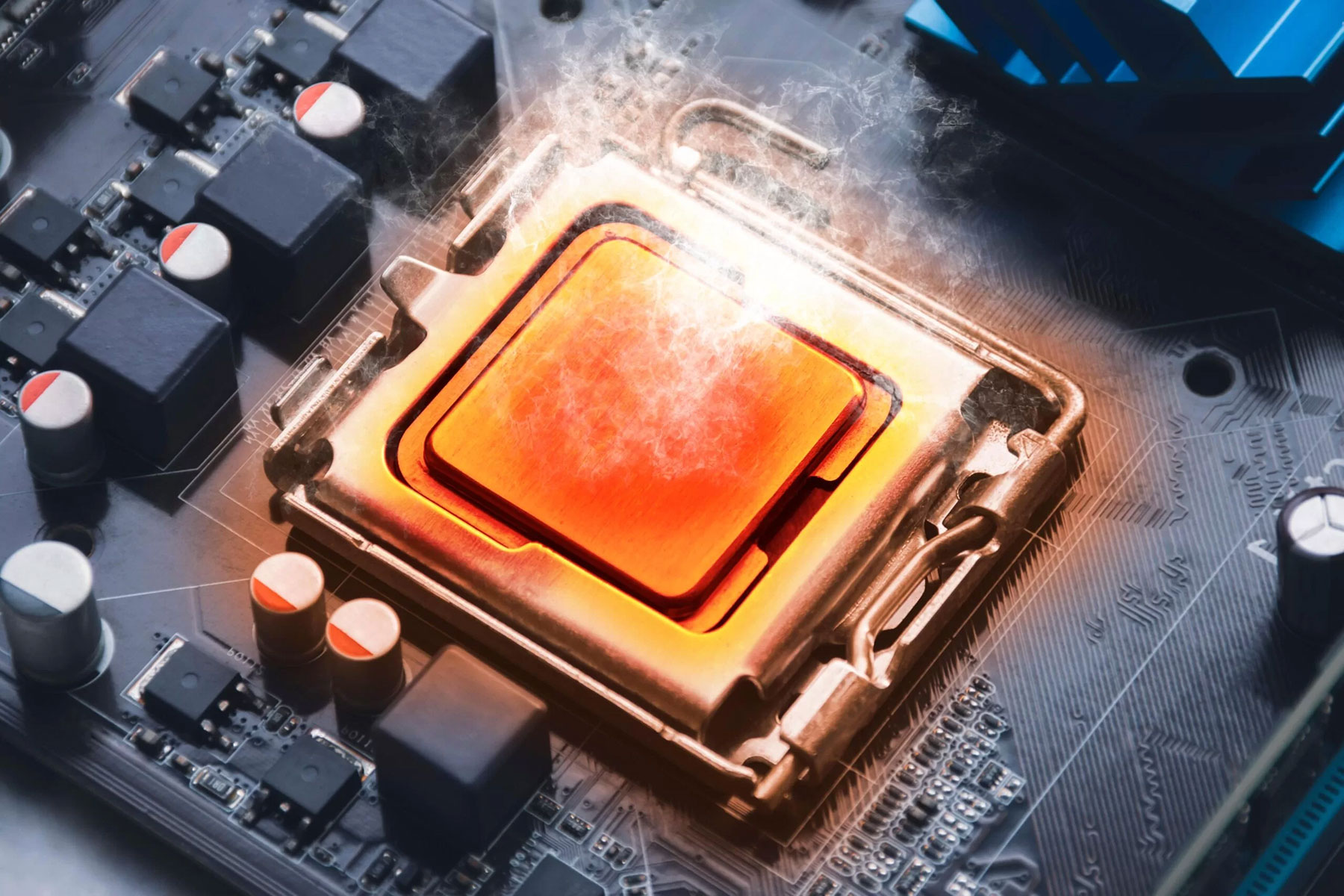
Can RAM Overheat? How a Memory Upgrade Can Help
Can RAM overheat? Yes, RAM can heat up during normal use, but RAM is usually not the main reason a computer overheats. Poor airflow, dust buildup, high CPU or GPU usage, failing fans, dried thermal paste, and motherboard heat issues are more common causes.
However, a memory upgrade can help in the right situation. When a computer does not have enough RAM, it may rely heavily on virtual memory or storage swapping. That can slow the system down, keep components active longer, and add unnecessary strain. Upgrading RAM may help the computer run more efficiently when low memory is part of the problem.
Quick Answer: Can Upgrading RAM Help with Overheating?
Upgrading RAM does not directly cool a computer, but it can help when low memory causes heavy swapping, slowdowns, and extra system workload. If overheating comes from dust, blocked vents, failing fans, dried thermal paste, or high CPU/GPU load, those cooling issues still need to be fixed separately.
Can RAM Overheat?
RAM can overheat, but it is not usually the first component to blame when a computer runs hot. Memory modules generate heat while the system runs, especially under heavier workloads, but most RAM operates safely when the computer has proper airflow and cooling.
Problems can appear when the inside of the computer gets too hot. If dust blocks airflow, fans fail, the CPU or GPU produces too much heat, or the motherboard area traps heat, the RAM may also run hotter than expected.
In high-performance systems, compact laptops, industrial computers, servers, or poorly ventilated desktops, memory temperature can become part of a larger thermal problem.
Why Computers Overheat
Computer overheating can come from several different causes. Before assuming RAM is the issue, check the cooling system, airflow, workload, and internal dust buildup.
- Poor airflow: Limited airflow traps hot air around the CPU, GPU, RAM, motherboard, and storage devices.
- Dust buildup: Dust can block vents, fans, and heat sinks, making the entire system run hotter.
- High CPU or GPU usage: Gaming, rendering, video editing, virtual machines, and heavy applications increase heat output.
- Failing fans: Worn or blocked fans cannot move heat out of the system efficiently.
- Dried thermal paste: Old thermal paste can reduce heat transfer from the CPU or GPU to the cooler.
- Low memory: Not having enough RAM can force the system to rely more on virtual memory or storage swapping, which may add workload and slowdowns.
How Low Memory Can Contribute to Overheating
Low memory does not create heat the same way a failing fan or blocked vent does. However, not having enough RAM can make the system work harder. When available memory runs low, the computer may use storage as temporary memory through a process often called swapping or paging.
Swapping can slow the computer down and keep the CPU, storage device, and memory subsystem active for longer periods. That extra activity may contribute to heat when the system already has poor cooling, heavy workloads, or limited airflow.
This is why some users notice a hot, slow computer at the same time. The heat may not come from the RAM alone, but low memory can add avoidable strain to a system that is already working too hard.
How Upgrading RAM Can Help
A RAM upgrade can help when the system does not have enough memory for the tasks it runs. Adding more compatible RAM gives the computer more room to handle active applications, browser tabs, design software, virtual machines, databases, or other memory-heavy workloads.
With more available memory, the system may rely less on storage swapping. That can reduce slowdowns, improve multitasking, and help the computer complete tasks more efficiently.
A memory upgrade is not a replacement for proper cooling, but it can be part of the solution when low memory contributes to poor performance, heavy system activity, and heat buildup.
- Less swapping: More RAM can reduce how often the system uses storage as temporary memory.
- Smoother multitasking: More memory helps the system handle multiple programs without constant slowdowns.
- Reduced system strain: A system with enough RAM may spend less time fighting memory bottlenecks.
- Better workload support: Applications such as CAD, video editing, databases, virtual machines, and design tools often need more memory.
- Improved responsiveness: A properly matched memory upgrade can help the system feel faster and more stable.
When a RAM Upgrade Will Not Fix Overheating
Upgrading RAM will not fix every overheating problem. If the system runs hot because of blocked vents, dust buildup, failing fans, dried thermal paste, poor airflow, or a high CPU/GPU workload, those issues need to be corrected directly.
Think of RAM as one possible performance bottleneck, not a cooling system. A memory upgrade can help reduce unnecessary workload in low-memory situations, but it cannot replace fan maintenance, thermal paste service, proper airflow, or hardware repair.
| Problem | Will More RAM Help? |
| Low memory and heavy swapping | Yes, a compatible RAM upgrade may help reduce system strain. |
| Blocked vents or dust buildup | No, clean the vents, fans, and airflow path. |
| Failing fan | No, repair or replace the fan. |
| Dried thermal paste | No, the CPU or GPU may need thermal service. |
| Heavy CPU or GPU workload | Only indirectly, if low RAM also contributes to bottlenecks. |
| Wrong or unstable memory settings | Possibly, but compatibility and BIOS settings should be checked first. |
What Causes RAM Overheating?
RAM overheating usually comes from the system environment around the memory, not just the RAM itself. The most common causes include poor airflow, dust buildup, heavy workloads, overclocking, and heat from nearby components.
- Poor airflow: Limited airflow can trap hot air around the memory, CPU, GPU, and motherboard.
- Dust buildup: Dust can block vents, fans, and heat sinks, making the entire system run hotter.
- High CPU or GPU usage: Gaming, rendering, virtual machines, and heavy applications can increase internal system temperature.
- High memory usage: Heavy multitasking or memory-intensive applications can keep RAM active for long periods.
- Overclocking: Running memory above standard settings can increase heat and reduce stability if cooling is weak.
- Compact system design: Laptops and small form factor systems often have less space for airflow.
- Failing cooling parts: Worn fans, dried thermal paste, or poor heat sink contact can raise overall system temperature.
Signs You May Need a Memory Upgrade
A memory upgrade may help if your computer regularly runs out of RAM during normal use. Check memory usage before assuming the RAM itself is overheating.
- Task Manager or Activity Monitor shows high memory usage during normal tasks.
- The computer slows down when several browser tabs or programs are open.
- The system freezes or becomes unresponsive during multitasking.
- Applications such as CAD, video editing, design tools, databases, or virtual machines need more memory.
- The system relies heavily on storage swapping because available RAM is too low.
- You need compatible replacement memory for an existing desktop, laptop, workstation, server, or embedded system.
Replace RAM if diagnostics show memory errors, the module is physically damaged, or the system becomes unstable with a specific memory module installed.

RAM Overheating vs CPU or Motherboard Overheating
Many people search for RAM overheating when the real issue may come from the CPU, GPU, motherboard, or cooling system. A motherboard overheating issue, for example, can raise temperatures around the memory slots and make the RAM area feel hot.
| Problem Area | Common Signs |
| RAM overheating | Memory errors, crashes, instability under heavy memory load, instability after overclocking. |
| CPU overheating | Thermal throttling, loud fans, shutdowns, high CPU temperature readings. |
| GPU overheating | Display glitches, game crashes, high GPU temperature, fan noise under graphics load. |
| Motherboard overheating | System instability, hot VRM area, shutdowns, heat around CPU socket or memory slots. |
| Poor airflow | Entire system feels hot, fans run loudly, dust buildup, heat trapped inside the case. |
Because these symptoms overlap, check temperatures, airflow, dust, fan operation, and memory settings before replacing parts.
How to Reduce RAM and System Heat
To reduce RAM and system heat, start with the basics. Most overheating problems improve when the system has better airflow and less dust.
- Clean dust from vents and fans: Dust blocks airflow and traps heat inside the system.
- Check fan operation: Make sure case fans, CPU fans, GPU fans, and laptop fans work correctly.
- Improve airflow: Keep vents open and avoid placing laptops on soft surfaces that block cooling.
- Review memory settings: If the system is unstable after enabling XMP, EXPO, or overclocking, test standard settings.
- Close unnecessary applications: Reducing heavy multitasking can lower memory, CPU, and storage activity.
- Check CPU and GPU temperatures: These components usually create more heat than RAM.
- Update BIOS or firmware when appropriate: Updates may improve memory compatibility and system stability.
- Use compatible RAM: Match the system’s supported memory type, speed, voltage, capacity, and form factor.
Choosing the Right RAM Upgrade
Choosing the right memory upgrade matters. The wrong RAM may not work, may run at reduced speed, or may cause instability. Before buying memory, confirm the system’s supported memory generation, form factor, speed, voltage, capacity, rank, ECC requirement, and operating temperature needs.
- Memory generation: DDR5, DDR4, DDR3, or another supported memory type.
- Form factor: UDIMM for many desktops, SODIMM for many laptops and compact systems, RDIMM or LRDIMM for many servers.
- Capacity: The total amount of memory the system and motherboard can support.
- Speed: The supported memory speed for the processor and motherboard.
- ECC support: Required for certain servers, workstations, industrial systems, and reliability-focused applications.
- Operating environment: Some embedded or industrial systems may need memory rated for wider temperature ranges or long-term availability.
If you are not sure which memory your system supports, check the system manual, motherboard specifications, approved vendor list, or contact a memory supplier for help matching the correct module.
Memory Upgrade Options from AMP
Accelerated Memory Production, Inc. supports memory module sourcing for desktops, laptops, workstations, servers, embedded systems, industrial systems, and specialized applications.
AMP can help customers review memory requirements such as DDR generation, form factor, capacity, speed, ECC support, rank, voltage, operating temperature, compatibility, lifecycle needs, and availability.
- Desktop and workstation memory: Support for compatible UDIMM and other memory module options.
- Laptop and compact system memory: Support for compatible SODIMM memory modules.
- Server and enterprise memory: Support for RDIMM, LRDIMM, ECC, and related memory requirements.
- Industrial and embedded support: Help matching memory to operating temperature, lifecycle, and system compatibility needs.
- Legacy memory sourcing: Support for systems that still rely on older DDR generations.
For help choosing compatible memory for your system or application, contact AMP at 714-460-9800 or send us a message online.
-
AMPOL46008G1800SP-CRC24
Model: AMPOL46008G1800SP-CRC24Storage Capacity: 08GBOperating Temp: Commercial Temp (0°C to 70°C) -
AMPOL46008G1800SP-CVF29
Model: AMPOL46008G1800SP-CVF29Storage Capacity: 08GBOperating Temp: Commercial Temp (0°C to 70°C) -
AMPOL46008G1800SP-CWE32
Model: AMPOL46008G1800SP-CWE32Storage Capacity: 08GBOperating Temp: Commercial Temp (0°C to 70°C) -
AMPOL46008G2800SP-CRC24
Model: AMPOL46008G2800SP-CRC24Storage Capacity: 08GBOperating Temp: Commercial Temp (0°C to 70°C) -
AMPOL46016G2800SP-CRC24
Model: AMPOL46016G2800SP-CRC24Storage Capacity: 16GBOperating Temp: Commercial Temp (0°C to 70°C) -
AMPOL46016G2800SP-CWE32
Model: AMPOL46016G2800SP-CWE32Storage Capacity: 16GBOperating Temp: Commercial Temp (0°C to 70°C) -
AMPOL46032G2800SP-CAB26
Model: AMPOL46032G2800SP-CAB26Storage Capacity: 32GBOperating Temp: Commercial Temp (0°C to 70°C) -
AMPOL46032G2800SP-CTD26
Model: AMPOL46032G2800SP-CTD26Storage Capacity: 32GBOperating Temp: Commercial Temp (0°C to 70°C) -
AMPOL46032G2800SP-CVF29
Model: AMPOL46032G2800SP-CVF29Storage Capacity: 32GBOperating Temp: Commercial Temp (0°C to 70°C) -
AMPOL46032G2800SP-CWE32
Model: AMPOL46032G2800SP-CWE32Storage Capacity: 32GBOperating Temp: Commercial Temp (0°C to 70°C)

FAQs About RAM Overheating and Upgrades
Yes. RAM can overheat in systems with poor airflow, heavy memory use, overclocking, high internal temperatures, or heat from nearby components. However, CPU, GPU, fan, dust, and airflow problems are more common causes of computer overheating.
Upgrading RAM can help when low memory causes heavy swapping, slowdowns, and extra system workload. It does not directly cool a computer, so airflow, fans, dust, CPU heat, GPU heat, and thermal paste issues should also be checked.
Yes. RAM heats up during normal operation because memory modules use power while storing and moving active data. In a properly cooled system, this heat usually stays within a safe operating range.
High memory usage does not always cause overheating by itself, but it can contribute to heat when the system is already under heavy workload. Low available RAM can also increase storage swapping, which may make the system work harder.
More RAM does not directly cool the CPU. However, if the system constantly runs out of memory and relies on storage swapping, adding more RAM may reduce avoidable workload and help the computer run more efficiently.
Adding RAM may slightly increase power use, but a compatible memory upgrade should not cause a major laptop temperature increase. If temperatures rise after an upgrade, check compatibility, airflow, installation, and system workload.
Improve airflow, clean dust, check fans, avoid unstable memory overclocking, use compatible RAM, monitor system temperatures, and check nearby CPU, GPU, and motherboard heat sources.


